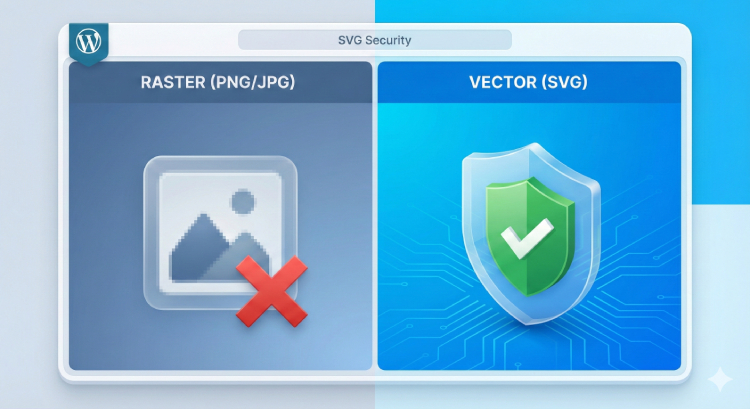
Scalable Vector Graphics (SVGs) are the gold standard for web graphics. Unlike JPEGs or PNGs, SVGs look crisp on any screen size – from mobile phones to 5K retina displays – while keeping your file sizes incredibly small.
But if you have ever tried to upload an SVG logo or icon to your WordPress Media Library, you’ve likely seen this error:
“Sorry, this file type is not permitted for security reasons.”
Why does WordPress block them? And how can you enable them without opening your site to hackers?
Why WordPress Blocks SVGs by Default
Unlike a standard image (which is a grid of pixels), an SVG is actually a document written in code (XML).
Because it is code, a malicious SVG file can contain scripts that execute when loaded. Hackers can use “infected” SVGs to trigger Cross-Site Scripting (XSS) attacks or XML External Entity (XXE) attacks to gain access to your site data.
That is why you should never just paste a code snippet into your functions.php file to forcefully allow SVGs. Doing so allows any SVG, including malicious ones.
You need a solution that sanitizes the file upon upload.
The Safe Solution: Use AdminEase with Sanitization
The safest way to enable SVG uploads is to use a tool that automatically scans and cleans the file before it saves to your server.
AdminEase handles this natively. It uses a dedicated SVGSanitizer library to strip out malicious code while keeping your image intact.
How to Enable SVG Uploads in 3 Clicks
Instead of installing a dedicated “SVG Support” plugin that adds unnecessary weight to your site, you can use the Media module inside AdminEase:
- Install AdminEase: Download it from the plugin repository or your account.
- Go to Settings: Navigate to AdminEase > Media.
- Toggle “Allow SVG Uploads”: Switch the setting to ON.
That’s it. You can now drag and drop SVG logos, icons, and illustrations directly into the Media Library. AdminEase performs invisible security checks on every upload to ensure the file is safe.
Bonus: Infinite Scroll for Media
While you are in the Media settings, you might also want to enable Media Infinite Scrolling.
If you have a large library of images, clicking “Load More” over and over is tedious. Infinite scroll lets you glide through your entire library smoothly – a small workflow tweak that saves a ton of time.
Summary
SVGs are essential for a modern, fast-loading website. Don’t let security fears stop you from using them.
By using AdminEase, you get the best of both worlds: the visual quality of vector graphics and the peace of mind that every file is sanitized and secure.