If you want to client proof WordPress, you are definitely not alone. If you build websites for clients, you have probably received “The Call” at some point in your career.
“Hey, the site is broken. I tried to install a plugin… and now everything is white.”
Handing over a newly built WordPress site with full administrator privileges is incredibly risky. Clients can accidentally delete essential plugins, edit theme code, or install heavy third-party tools that completely break the custom design you worked so hard to build.
Fortunately, you don’t need to be a dictator to your clients. You just need to put up some friendly guardrails. Read on to learn exactly how to use the AdminEase plugin (Internal Link) to secure the dashboard and keep your builds intact while still letting clients edit their content safely.
Why You Need to Restrict Client Access WordPress
If you want to successfully lock down WordPress admin areas without confusing your client, follow these straightforward configurations using AdminEase.
1. Disable File Editing WordPress (The #1 Site Killer)

WordPress natively allows administrators to edit core theme .php files directly from the dashboard (Appearance > Theme File Editor). One missing semicolon here can crash the entire site instantly. There is almost no reason a client needs access to this.
- The Fix: In AdminEase, go to Security > Disable File Edit.
- Result: To effectively disable file editing WordPress menus, this setting removes the “Theme Editor” and “Plugin Editor” items entirely. The temptation to touch raw code is completely gone.
2. Freeze the Plugin and Theme List

Clients love to install new tools. Unfortunately, unvetted plugins often conflict with your existing agency setup or introduce severe security vulnerabilities.
- The Fix: Go to Security > Disable File Mods.
- Result: This completely blocks anyone from installing, updating, or deleting plugins and themes. It essentially “freezes” the site’s codebase in the exact state you delivered it.
3. Enforce Strong Passwords
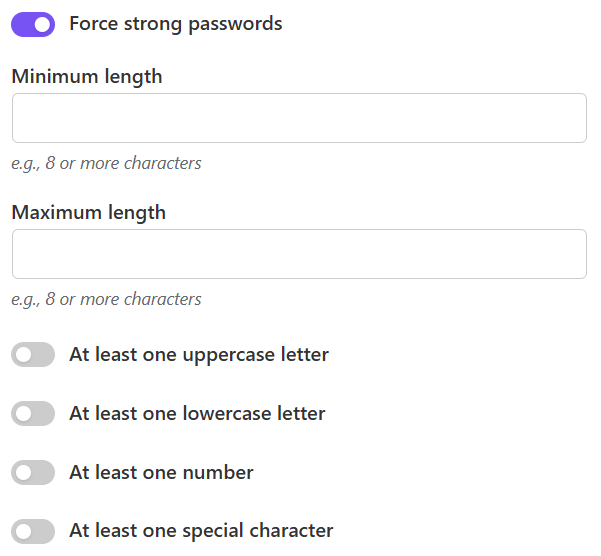
Clients are notorious for using easily compromised passwords like Company2025! or Admin123. This is the easiest way for a site to get hacked, no matter how good your security plugins are.
- The Fix: Go to Users > Force Strong Passwords.
- Result: This enforces password complexity rules (length, upper/lowercase, numbers, and symbols). The client must set a secure password, protecting both their business and your reputation.
4. Redirect “Site Broken” Emails to YOU
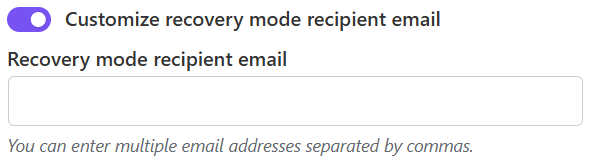
When WordPress encounters a fatal error (often called the “White Screen of Death”), it sends an automatic email with a recovery link. If that email goes to your client, they will panic.
- The Fix: Go to Updates > Customize recovery mode recipient email.
- Result: You can set your agency support email as the default recipient. If the site breaks, you get the alert, fix it via the recovery link, and the client never even knows there was a problem.
5. Prevent “Revision Bloat”
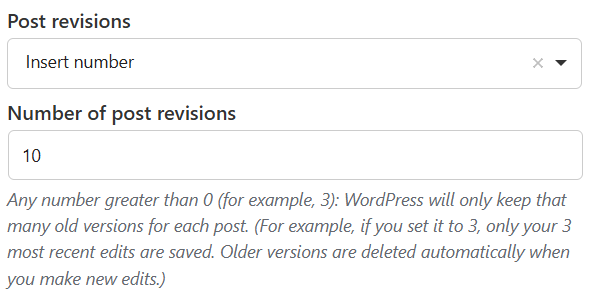
Clients often hit “Save Draft” dozens of times while editing a page. By default, WordPress saves every single version forever. Over a year, this can bloat the database by gigabytes, drastically slowing down page load times.
- The Fix: Go to Posts > Post Revisions.
- Result: You can limit revisions to the last 5 or 10 saves. This keeps the database lean automatically without the client needing to do anything.
6. Hide The Admin Bar
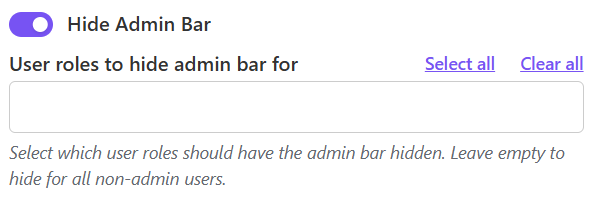
The black admin bar at the top of the site can confuse non-technical clients (“Why is this black bar on my live website?”). It also tempts them to click “Dashboard” when they should be looking at the frontend of the site.
- The Fix: Go to Users > Hide Admin Bar.
- Result: Provides a cleaner frontend experience that looks like a “real” website to them, minimizing dashboard visits. If you’d like to read more about how default roles interact with the admin bar, check out the official WordPress roles documentation (External DoFollow Link).
Summary: Client Proof WordPress Today
By taking just 5 minutes to configure AdminEase before you hand over a new build, you can effectively client proof WordPress. You will save yourself hours of unpaid troubleshooting later, ensure the site stays fast and secure, and guarantee that your client stays happy.