
What you'll have when you're done
A sluggish wp-admin isn't the same problem as a slow front-end, and the fix is usually different too. This guide gets you to the actual cause first, instead of having you change five settings at once and hope one of them worked.
- A 60-second baseline you can re-check after any plugin or theme update.
- The specific cause identified out of the seven most common ones.
- The AdminEase fix applied for that cause, with a link to the deeper walkthrough if you want to go further.
admin-ajax.php. Run the 60-second baseline below to find out which one applies to your site before changing anything.
- Take a baseline: know what's actually slow before you touch anything
- Low PHP memory limit
- A bloated database (revisions, autosaves, spam)
- Dashboard bloat: notices, emojis & unused widgets
- WP-Cron running on every admin page load
- A specific plugin slowing down admin-ajax.php
- Autosave firing too frequently
1. Take a Baseline Before Changing Anything
Skipping this step is why most "slow admin" fixes don't stick, people change settings that were never the bottleneck, declare victory, and the slowness creeps back a week later. Before touching anything, check:
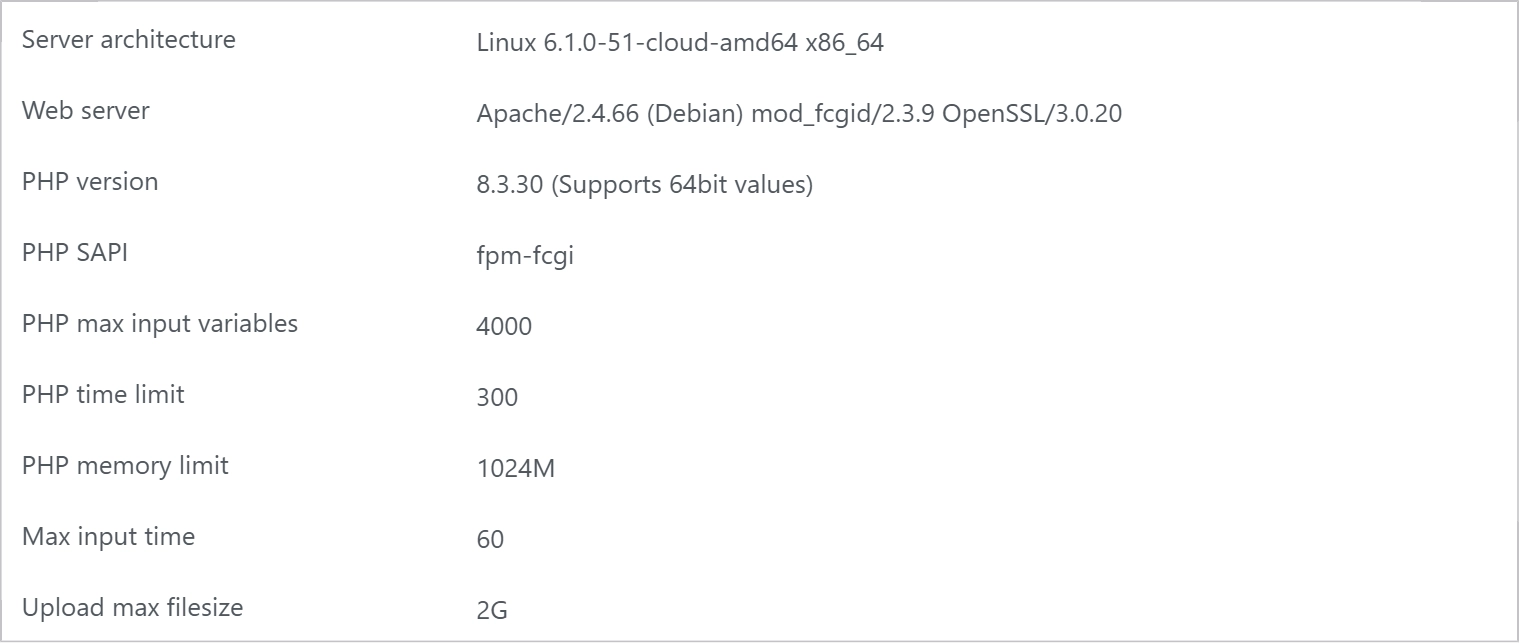
- PHP memory limit - Tools › Site Health › Info › Server, or AdminEase's diagnostics panel logs this automatically. If you don't have AdminEase installed yet, the free Query Monitor plugin shows the same number plus real query timings.
- Active plugin count - a high count isn't automatically bad, but it's the first thing to note before you start disabling things.
- Database size - visible in Site Health › Info › Database. Anything over a few hundred thousand rows in
wp_postmetaorwp_postson a small site is worth a closer look. - Actual load time - time how long the Dashboard or Posts screen takes to become interactive, not just when the page visually appears. Under 2 seconds to interactive is normal on decent hosting; consistently over 5 seconds is a real red flag, not a "just feels slow" impression.
2. Low PHP Memory Limit
WordPress admin screens, especially Plugins, Updates, and any page with a lot of AJAX activity, need more memory headroom than the front end. If your host's default is low (32-64MB is common on budget hosting), the admin will feel sluggish or occasionally throw a white screen when you try to update several plugins at once.
As a rough starting point: a small brochure site is usually comfortable at 128M, a typical blog or small WooCommerce store at 256M, and a busy WooCommerce store or multisite network often needs 512M or more. After changing it, go back to Site Health › Info › Server and confirm the new value actually took effect, some hosts silently cap it lower than what you requested.
For exact threshold recommendations and how to verify the change actually took effect, see the full Performance Cleanup & Limits guide, this is one of the areas where it's worth the deeper read.
3. A Bloated Database (Revisions, Autosaves, Spam)
Every autosave and every post revision is a database row. WordPress keeps post revisions unlimited by default, so on a site that's been running a while, even without unusual traffic, this can silently grow into thousands of rows the admin has to query through on screens like Posts and Search. A single frequently-edited page can easily accumulate 50-100+ revisions on its own.
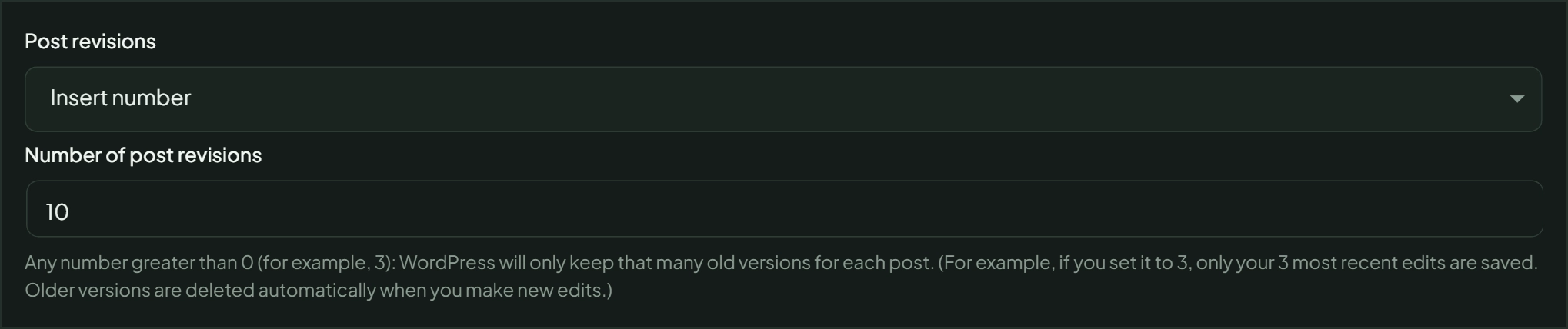
For a one-time cleanup of what's already accumulated, plus autosave and trash retention settings, see the Performance Cleanup & Limits guide.
4. Dashboard Bloat: Notices, Emojis & Unused Widgets
Plugin update nags, emoji-detection scripts loading on every admin page, and dashboard widgets you never look at all add real, measurable overhead, individually small, but it adds up across every single admin page load, every day, for every logged-in user.
5. WP-Cron Running on Every Admin Page Load
By default, WordPress checks for scheduled tasks (post publishing, plugin update checks, backups) on every single page load, including every admin page you open. On a busy dashboard, that's a lot of extra overhead stacking up behind the scenes on top of everything else already competing for the same PHP request.
If you do have SSH or cron-tab access, the replacement is a single crontab line that hits wp-cron.php on a fixed schedule instead of on every page load:
*/5 * * * * curl -s https://your-site.com/wp-cron.php?doing_wp_cron > /dev/null 2>&1
Five minutes is a reasonable default for most sites; tighten it to every minute if you rely on precisely-timed scheduled posts or email queues.
For the exact cron command variations and how to verify it's actually running, see the full walkthrough, which covers it step by step.
6. A Specific Plugin Slowing Down admin-ajax.php
Not all plugins are created equal, one poorly optimized plugin making excessive admin-ajax.php calls can single-handedly make the whole dashboard feel slow, even with everything else on this list fixed. This is the cause people skip because it requires actually looking at what's happening on the network level, rather than toggling a setting.
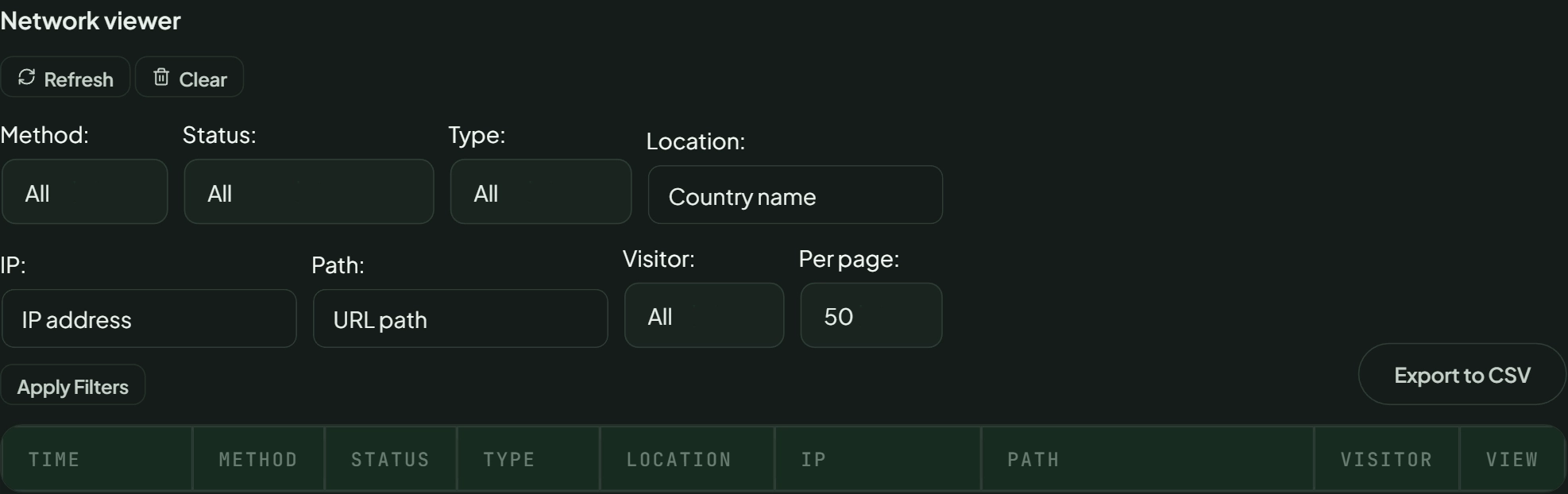
admin-ajax.php and check the Time column) or the free Query Monitor plugin, then deactivate the slow plugin temporarily to confirm before deciding whether to replace it.
7. Autosave Firing Too Frequently
WordPress autosaves the post you're editing every 60 seconds by default. On content-heavy screens, or with several editors working at once, that's a steady stream of background save requests stacking up on top of everything else, small on its own, but it adds to the pile. Page builders like Elementor and WooCommerce's product editor tend to save larger payloads per autosave than a plain post, which makes this worse on exactly the screens where speed matters most.
Still Slow After All of This? Check Your Hosting
Go Deeper: Full Performance Cleanup Walkthrough
This guide is meant to get you to the right fix fast. If you want the complete configuration details, exact memory thresholds, the system-cron command and how to verify it's running, database cleanup for what's already accumulated, and media library optimization, the Performance Cleanup and Limits with AdminEase guide covers all of it in depth.
Frequently Asked Questions
Why is my WordPress admin so slow?
The most common causes, in order of frequency, are a low PHP memory limit, a bloated database from unlimited post revisions, WP-Cron running on every page load, and a specific poorly-optimized plugin. Run the baseline check above first to narrow it down instead of guessing.
Why is my WordPress dashboard so slow after an update?
Plugin and core updates sometimes reset settings (like a memory limit override) or add new admin-side scripts. If slowness started right after an update, check that plugin's settings first, and use your browser's DevTools Network tab or Query Monitor to confirm whether it's the source.
Is a slow wp-admin different from a slow website?
Yes, they often have different causes. Front-end speed is mostly about caching, image size, and theme/CSS/JS delivery to visitors. Admin speed is about server resources, database query load, and background processes like autosave and WP-Cron that only run for logged-in users. A site can have a fast front end and a slow admin, or vice versa.
How do I speed up the WordPress admin panel?
Start with the baseline check, then work through memory limit, database bloat, dashboard notices/emojis, WP-Cron, and autosave frequency in that order, they're listed roughly by how often each one turns out to be the actual cause.
Can my hosting provider cause a slow WordPress backend?
Yes. If you've applied every fix above and the admin is still slow, under-resourced hosting (low CPU/memory allocation, oversold shared hosting) is the next most likely explanation, and it isn't something a plugin can fix.
Will disabling WP-Cron break my scheduled posts?
Only if you disable it without setting up a replacement. WP-Cron handles scheduled publishing, plugin update checks, and backup schedules, if you turn it off, you need a real system cron job pointed at wp-cron.php to take over that work, covered in the full guide linked above.
Do I need a caching plugin to fix a slow admin panel?
No, caching plugins primarily speed up what visitors see on the front end. They don't touch the admin-side causes covered here (memory limits, database queries, autosave frequency, WP-Cron), so a caching plugin alone won't fix a slow dashboard.
Does the number of plugins slow down wp-admin?
Not by count alone. Twenty well-built plugins can be lighter than three poorly optimized ones. What matters is whether a plugin is making excessive database queries or admin-ajax.php calls on every admin page load, which is exactly what the Network Viewer's request volume and DevTools' response times are designed to catch, see the diagnostic steps above.
Summary: Diagnose First, Then Fix
The fastest path to a faster admin isn't trying every tip you find, it's spending 60 seconds identifying which of the causes above actually applies to your site, then fixing that one thing. Re-run your baseline afterward to confirm it worked. Have questions or want a second opinion on your setup? Contact us here.
Related reading
Keep going: Performance cleanup and limits · Power Editor workflow · Monitoring and diagnostics
This walkthrough uses AdminEase.